
SuperPuTTY configuration in EVE-NG
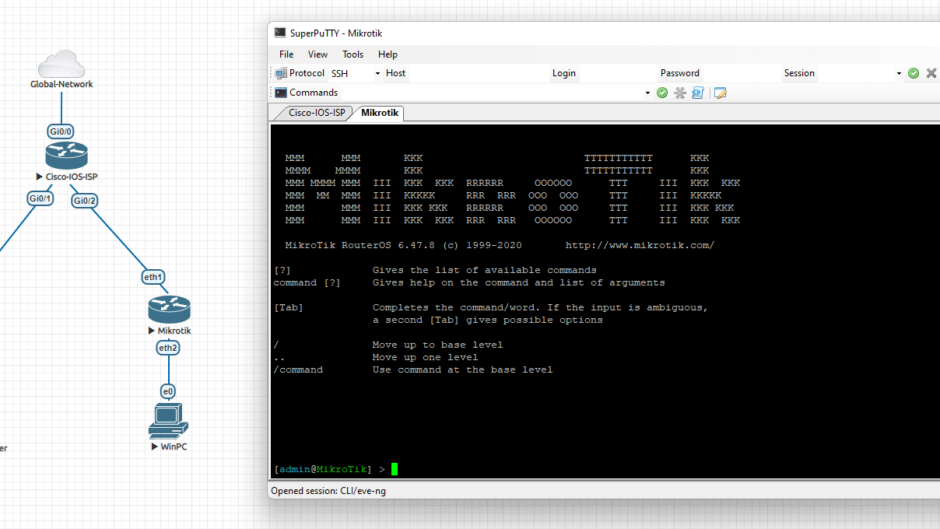
For proper EVE-NG operation, the so-called Windows Client Side Pack is installed. The integration package includes Windows registry files for the PuTTY and SecureCRT terminal clients. The default client selected is PuTTY, which I like and recommend. However, it has a disadvantage in that it does not support multiple sessions in cards, which is possible, for example, in the paid SecureCRT. A free solution to this problem is SuperPUTTY , which allows you to manage multiple sessions via tabs and windows. EVE-NG unfortunately does not provide a Windows registry file for SuperPuTTY in its integration package.
I have prepared a ready-made Windows registry file for you, which will allow you to easily use SuperPuTTY to conveniently work with EVE-NG.
Windows Registry Editor Version 5.00

[HKEY_CURRENT_USER\SOFTWARE\Classes\SuperPutty.telnet]
@="telnet"

[HKEY_CURRENT_USER\SOFTWARE\Classes\SuperPutty.telnet\DefaultIcon]
@="C:\\Program Files (x86)\\SuperPuTTY\\SuperPutty.exe, 0"

[HKEY_CURRENT_USER\SOFTWARE\Classes\SuperPutty.telnet\shell]

[HKEY_CURRENT_USER\SOFTWARE\Classes\SuperPutty.telnet\shell\open]

[HKEY_CURRENT_USER\SOFTWARE\Classes\SuperPutty.telnet\shell\open\command]
@="\"C:\\Program Files (x86)\\SuperPuTTY\\SuperPutty.exe\" %1"

[HKEY_CURRENT_USER\SOFTWARE\SuperPutty]

[HKEY_CURRENT_USER\SOFTWARE\SuperPutty\Capabilities]

[HKEY_CURRENT_USER\SOFTWARE\SuperPutty\Capabilities\URLAssociations]
"telnet"="SuperPutty.telnet"

[HKEY_CURRENT_USER\SOFTWARE\RegisteredApplications]
"SuperPutty"="Software\\SuperPutty\\Capabilities"

[HKEY_CURRENT_USER\SOFTWARE\Classes\telnet\shell]

[HKEY_CURRENT_USER\SOFTWARE\Classes\telnet\shell\open]

[HKEY_CURRENT_USER\SOFTWARE\Classes\telnet\shell\open\command]
@="\"C:\\Program Files (x86)\\SuperPuTTY\\SuperPutty.exe\" %1"
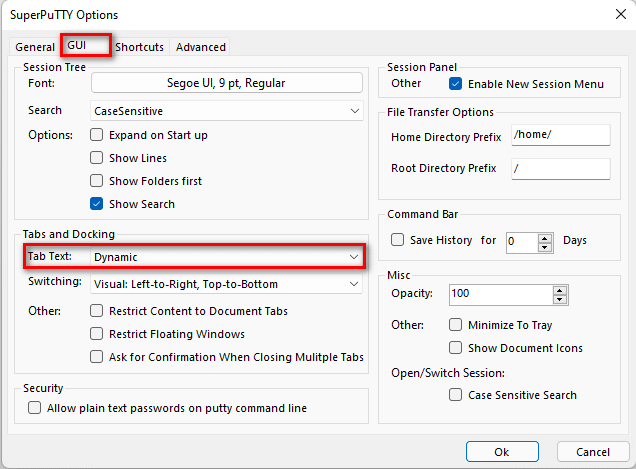
Save the above Windows registry configuration for SuperPUTTY as e.g. , then run it in the Windows registry editor and allow the modifications. It is worth changing the tab text in the program options to “dynamic” mode, which will display the device names assigned in EVE-NG on the tabs.win10_64bit_superputty.reg
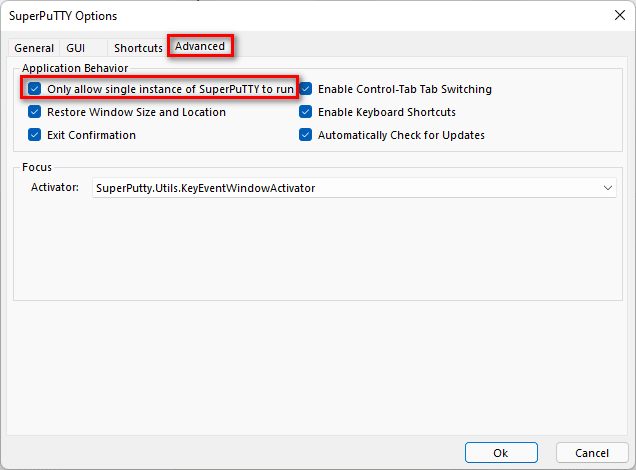
Sometimes, instead of new tabs, subsequent devices open as new instances of SuperPuTTY. In this case, you must select “allow single instance to run” in the advanced options. As a result, it will be possible to run only a single instance of the program and the ability to work in tabs.
That’s all you need to do to work comfortably with multiple tabs in EVE-NG. Have fun with making the labs!